
Pulse Quick Start
Open Pulse on the web, add indicators and Trade Echo layers, change settings, draw, set alerts and trade on paper.
Pulse is the Trade Echo chart: one ticker, live candles, and the dealer map drawn on price. It covers stocks, ETFs, indices, CME futures roots, perps and prediction markets. This page covers the current Pulse (Pulse v2) on the web.
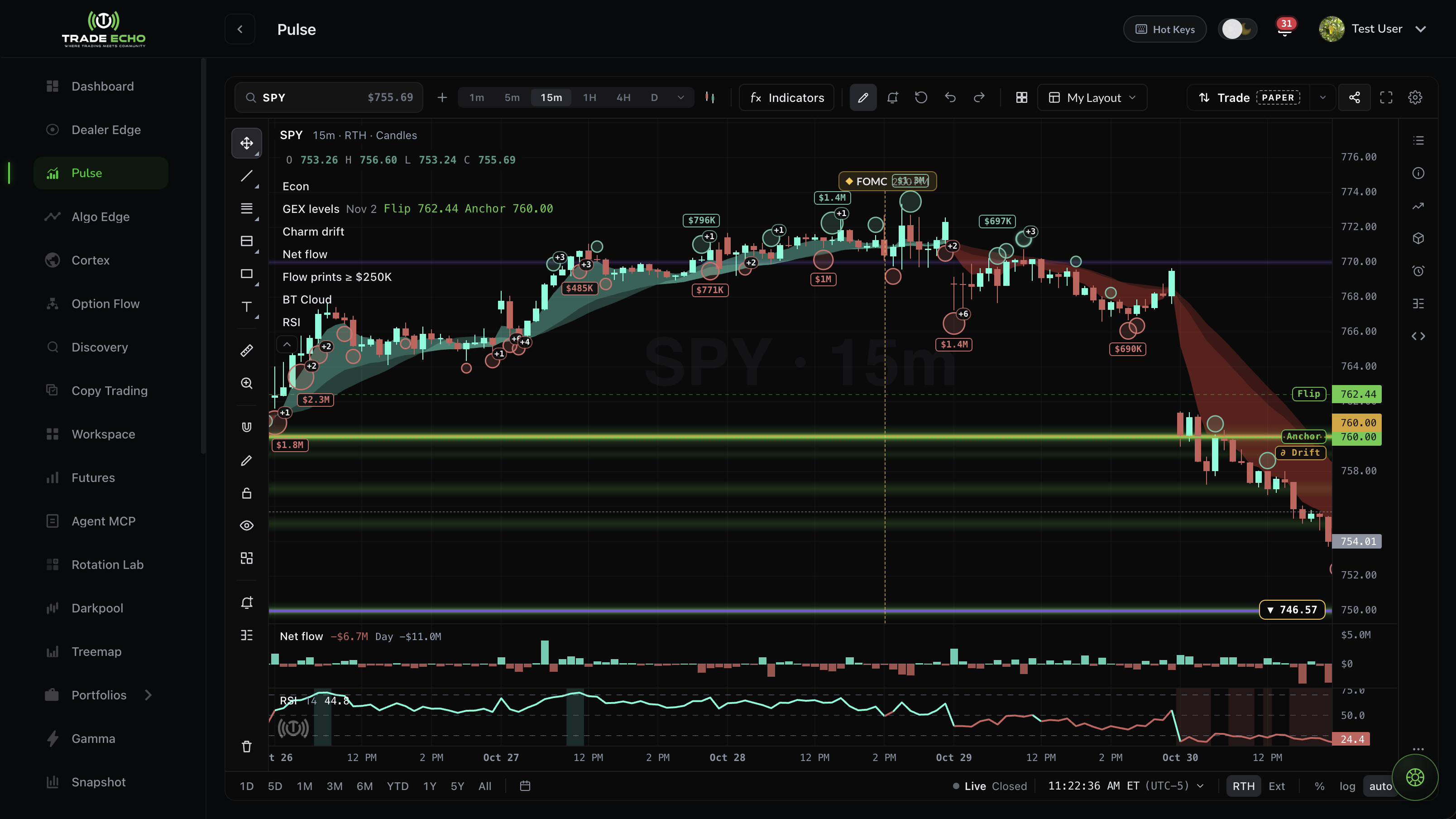 Pulse with GEX levels, Charm drift, flow prints and Net flow on the chart
Open Pulse#
- Sign in at app.tradeecho.com.
- Click Pulse in the left sidebar. The Hub's Pulse tile opens the same chart.
- Type a ticker in the toolbar search, for example
SPY,QQQorES.
The search panel also finds perps, pre-IPO names and prediction markets. See Pulse symbol search.
Dealer Edge first, Pulse second#
Dealer Edge is the research view: every strike and expiration on a grid. Pulse is the trading view: the same dealer levels plotted on price while you trade. A simple routine:
- Dealer Edge (GEX) for Anchor, Flip, Defense and the GEX Rating.
- Dealer Edge (Charm) for the strongest Charm strike above and below price.
- Pulse to watch price against those levels, then add a filter or two.
Full routine: Charm + Pulse Workflow.
Add indicators and layers#
Everything you add to the chart starts from one picker, Indicators and scripts:
Click Indicators in the toolbar, or + Add in the legend.
The picker holds Trade Echo's own Pulse layers (GEX levels, Charm drift, Net flow, Dark pool, Gravity Path and more), built-in Indicators, Chart types, your own scripts, and community scripts from the gallery. Up to 5 studies and scripts fit on one chart.
Details: Indicators and layers.
Change settings#
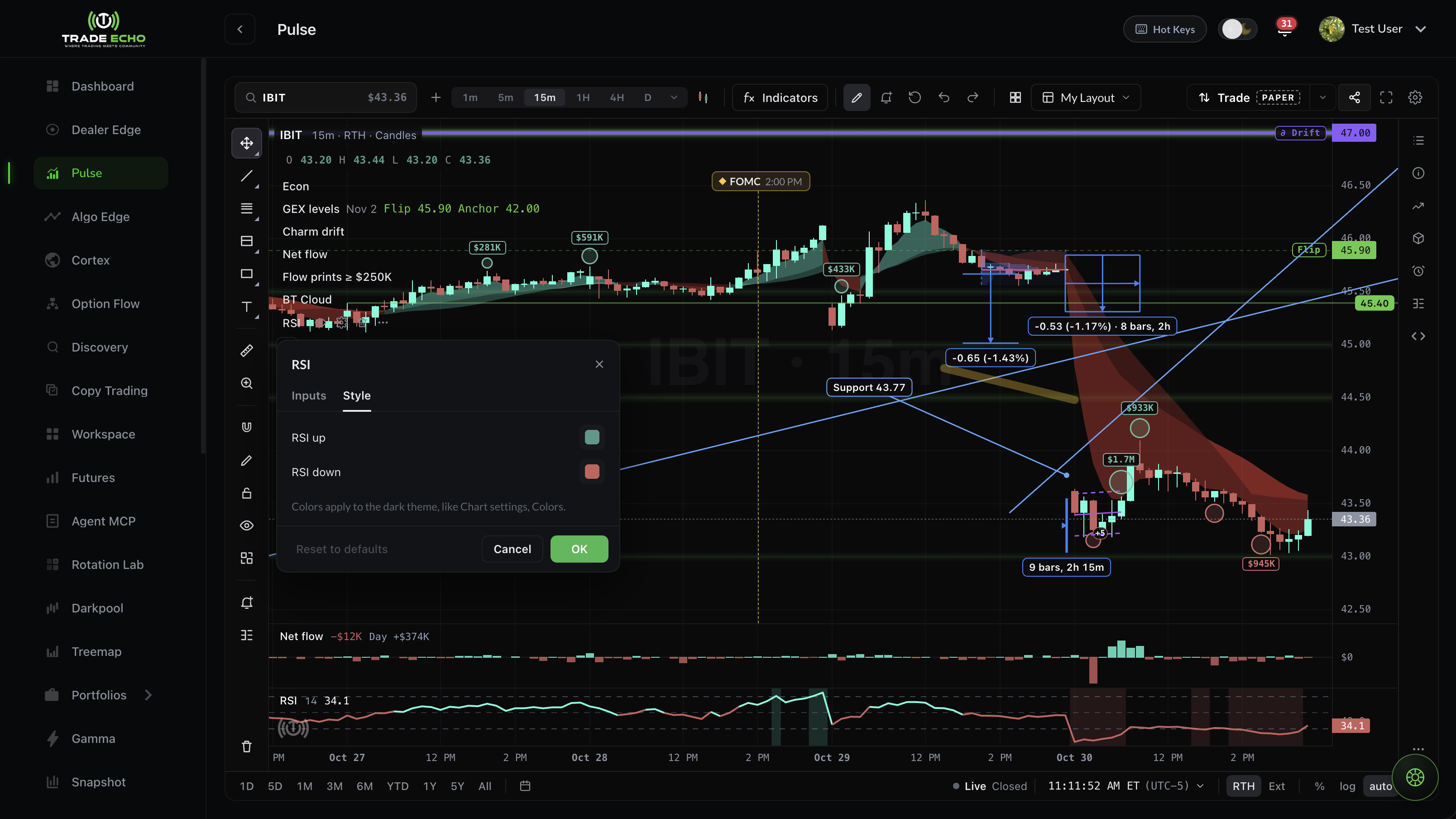 A study's settings with the Inputs and Style tabs
Every item on the chart has a row in the legend. Open its settings from the row's gear: hover the row, or use its menu and choose Settings. Settings have two tabs:
- Inputs: lengths, sources, windows and other values.
- Style: show or hide each line, its color, width (1 to 4 px), and solid, dashed or dotted.
Changes preview live. OK saves them, Cancel puts them back, and Reset to defaults restores the original settings.
The toolbar gear, Chart settings, holds the chart-wide Style and Colors.
Draw, set alerts and trade on paper#
- Drawings: the drawing toolbar has lines, Fibonacci tools, shapes, annotations and a Positions group (Long position and Short position). Drawings save to your account per ticker.
- Price alerts: use Add alert in the toolbar, or open the Price alerts panel. An alert made on a line moves with the line. Alerts are checked on our servers, so the chart doesn't need to stay open.
- Paper trading from the chart: draw a Long or Short position, then Send as order to place a simulated options order. See Chart trading (paper).
Futures on Pulse#
Search a futures root such as ES, NQ, MES, MNQ, RTY, YM, CL, GC or ZN, and Pulse loads Globex-session candles. Dealer layers built from stock options (GEX, Charm, Net flow, Dark pool) don't apply to futures roots. For the full futures dealer map, open Futures and the Echo Map.
Perps, prediction markets and the 24h session#
Pulse also charts Hyperliquid perps and prediction markets, adds a 24h session with overnight stock trading, and shows Implied SPX as an estimate outside regular hours. See Perps and prediction markets in Pulse and The 24h session and Implied SPX.
A first session#
- Do the Dealer Edge 60-second GEX read for your ticker.
- Open Pulse and enter the same ticker.
- Pick a 5-minute chart.
- Open Indicators and scripts and add GEX levels and Charm drift from Pulse layers.
- Check that the levels on the chart match Dealer Edge.
- Add Net flow or Dark pool only if you want a second read.
Related#
- Indicators and layers: the picker, studies, chart types, compare, events, key levels and multi-chart
- Pulse symbol search: tabs, Trending and keyboard shortcuts
- Perps and prediction markets in Pulse
- The 24h session and Implied SPX
- Stock Time & Sales and Share a Pulse layout: opening to Lifetime members first
- Echo Scripts: write your own studies on the web
- Scripts gallery: add and publish community scripts
- Gravity Path: the forward dealer arc
- Net Flow: what the Net flow layer measures
Trade Echo docs are for product education only - not financial advice.