
Using Copy Trading
Tab-by-tab guide to Copy Trading - the header and Pause all, Overview, Broker Accounts, Traders, Performance, Positions, Settings, and Support.
Open Copy Trading from the main menu. Under the header is a row of tabs (a segmented switch). Which tabs you see depends on your role:
- Everyone: Overview, Broker Accounts, Positions.
- Subscribers and pilots: Performance.
- Subscribers only: Traders, Settings, Support.
The full subscriber order is Overview, Broker Accounts, Traders, Performance, Positions, Settings, Support. The old Leaderboard and Discord tabs now live inside Traders.
If you expect a tab and do not see it, you may be in the pilot view, or copy trading may not be enabled for subscribers on your account yet.
The header: who you are and whether copying is on#
The line at the top of the page shows:
- Your plan, for example Lifetime plan (pilots see Pilot).
- Where copies go, for example "copying into" your broker name and the last four digits of the account (••••1234).
- Switch to trader view - only shown if your account is approved as a pilot. Pilots see Switch to subscriber view.
Subscribers who follow at least one trader also see a copying-state pill on the right:
| Pill | What it means | Button |
|---|---|---|
| Copying on | New trades copy automatically. | Pause all |
| Copying paused | No new trades copy. If a limit paused you (daily-loss stop or drawdown stop), the pill says which one and when. | Resume copying |
| Copying partially paused | Some of the traders you follow are paused. It shows how many. | Resume copying |
| Signals only | An older setting (Auto Mirror Traders) is off, so follows are signals only. | Pause all |
Pause all and Resume copying flip the same master switch as Pause all copying in Settings. It covers every trader you copy, pilots and Discord alert traders alike. While paused, exits for positions you already hold still go through. Pausing does not close anything, so check Positions and your broker for open risk.
If you see a card that says Auto Mirror Traders is off, your follows are signals only. Use Turn on Auto Mirror on that card to start copying again. The toggle itself is no longer in Settings.
What "Paused" means#
A trader shows Paused (amber) only when copying from them is really paused. That happens in three cases:
- Pause all copying is on - the master switch above. It can be turned on by you, or by your daily loss limit or drawdown auto-pause.
- A timed pause is running - you set Pause this pilot until in Settings and that time has not passed yet.
- You paused that trader yourself - for example with Pause copying this trader on the Overview row menu.
Hover the Paused tag on the Traders tab to see which one applies ("Pause all copying is on", "Paused until" a date and time, or "You paused this follow").
Everything else reads as not following and shows a normal Follow button. That includes traders you unfollowed and follows the system turned off, for example after a lapsed subscription, a disconnected broker, or when you switched to a different trader on a one-follow plan. To copy one of them again, Follow them from Traders.
Overview#
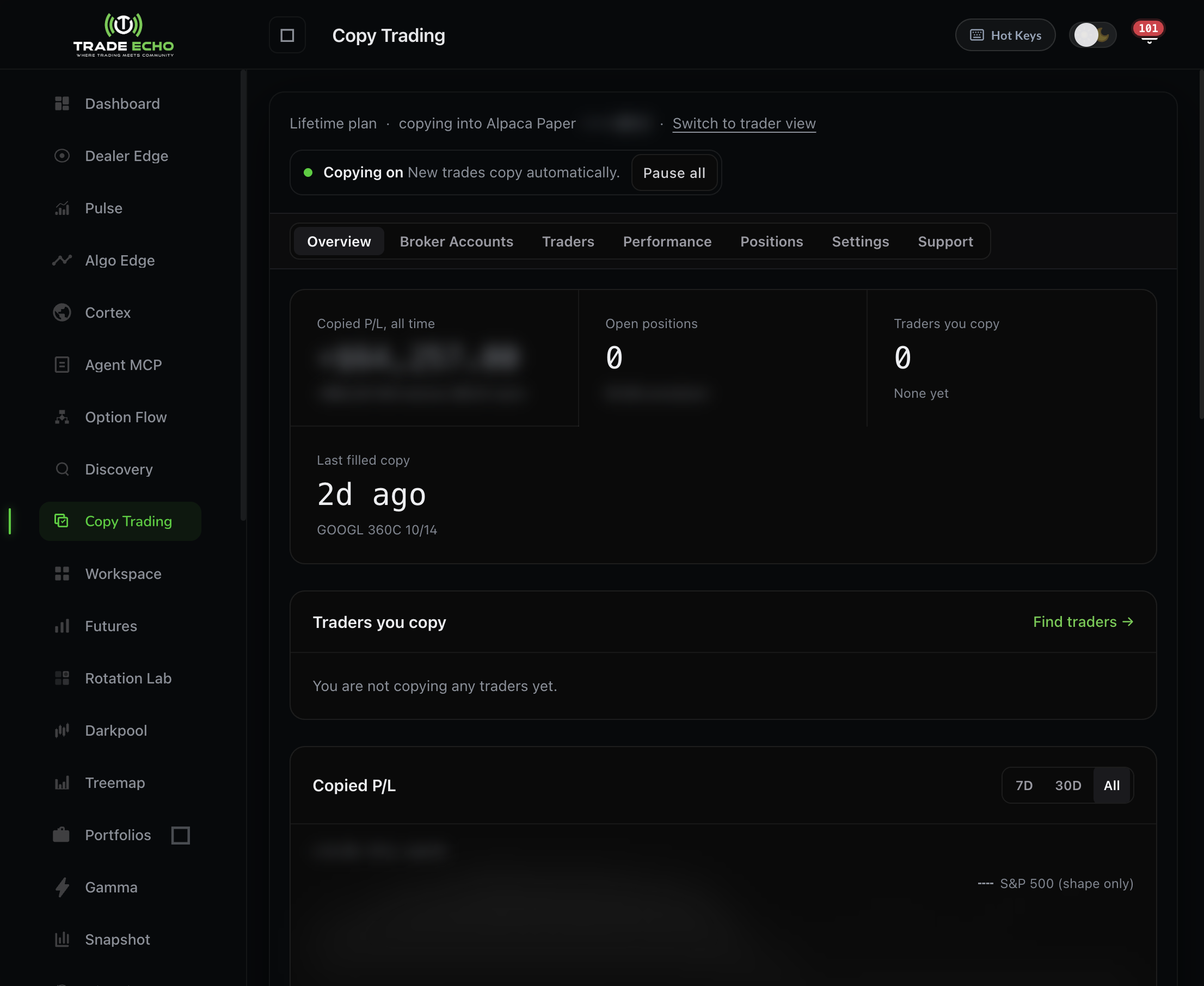 Copy Trading Overview with the summary strip, the Traders you copy card, and the Copied P/L chart
Your home base for copy trading.
Summary strip - four numbers across the top:
- Copied P/L, all time - realized plus open, when both are known.
- Open positions - how many copied positions you hold now.
- Traders you copy - with a note such as "All active" or "1 paused".
- Last filled copy - when your last copy filled, plus a "See why" link if recent copies were skipped.
Traders you copy - one row per trader with their 30D P/L, win rate, your sizing, and a Status (Active or Paused).
- Settings opens that trader's settings.
- The row menu (three dots) offers Pause copying this trader / Resume copying this trader, Show copies and limits, and Unfollow (it asks you to confirm first).
- Click a row to expand your recent copies of that trader and the limits that apply to them.
- Find traders jumps to the Traders tab.
Copied P/L chart - switch between 7D, 30D, and All. The dashed S&P 500 (shape only) line shows the S&P 500's % change over the same dates. Each line is scaled on its own, so it compares shape, not dollars.
Recent activity - your latest copies, each with its BTO / STC tag, contract, trader, and price. A status badge shows Filled or Skipped. Skipped rows show the skip reason inline, plus a Why? Ask link that sends the question to the Support assistant. All activity opens the full list on Positions.
Right rail:
- Broker - your copy account, connection status, equity, and last sync. Manage opens Broker Accounts.
- Your limits - sizing, max contract price, daily loss limit, and drawdown auto-pause. Edit opens Settings.
- A short self-directed disclaimer.
Pilots see a pilot version of Overview: tracked P/L, active followers, open contracts, closed today, recent signals, and a Reach card.
Broker Accounts#
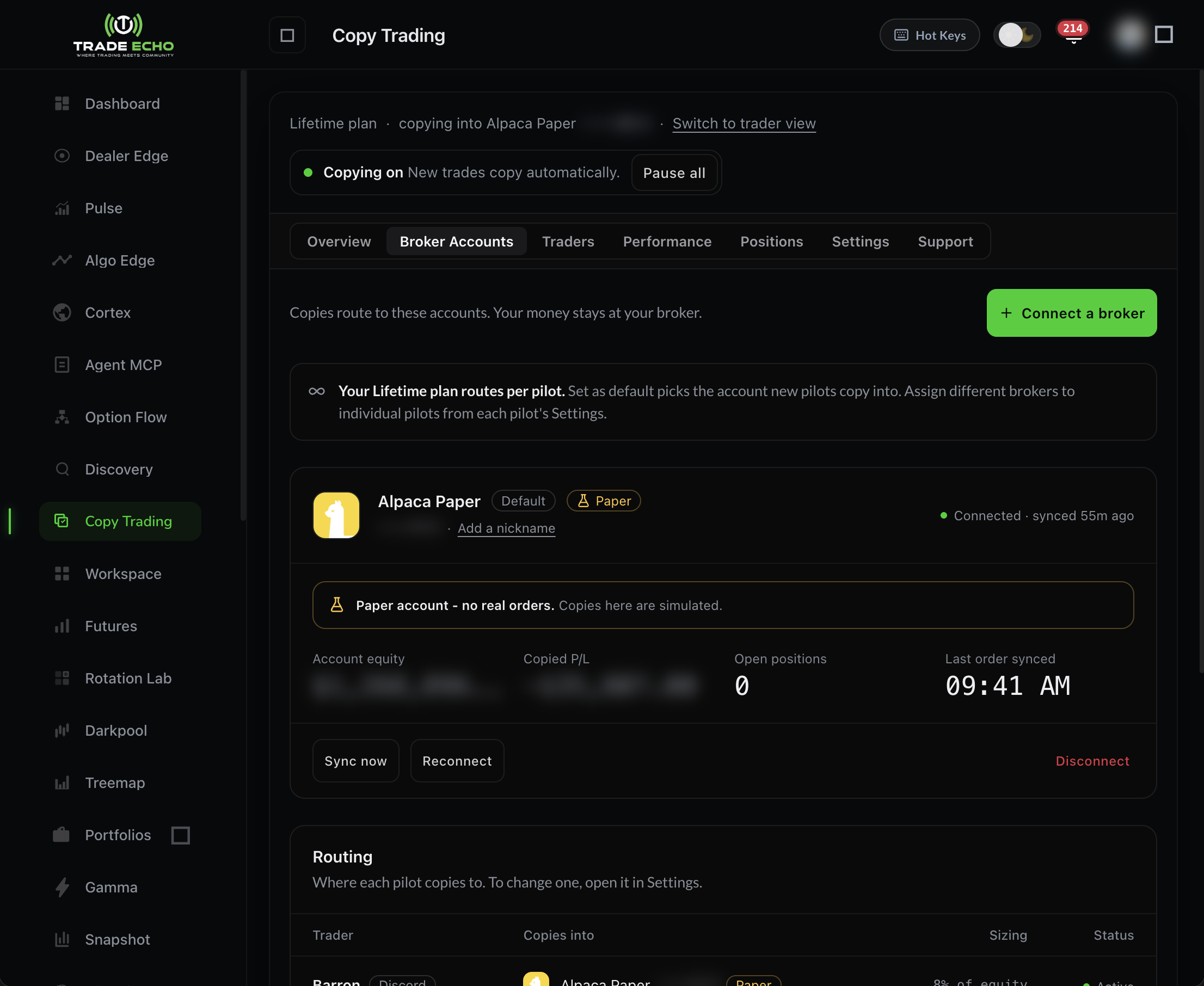 Broker Accounts tab with account cards, the routing table, and supported brokers
Connect the broker account where copied trades should be placed. The first time you open this tab, the app may ask you to accept the copy trading terms.
Connect a broker opens a short, 3-step window:
- Choose broker.
- Sign in at broker - a secure handoff. You sign in at your broker, and Trade Echo never sees your password.
- Pick account - when it finishes, the app offers Set as default so copies route there.
Each connected account has a card with account equity, copied P/L, open positions, and last order synced. Card actions:
- Sync now - refresh balances and positions.
- Reconnect - restore the link if it expired (or Upgrade at broker if the account needs options enabled).
- Set as default - the account your copies use. The default account shows a Default badge.
- Disconnect - remove the link (it asks first).
- Add a nickname so you always know which account is which.
Monthly and yearly plans copy into one default account. If you have two or more accounts connected and none is the default, a banner asks you to pick one.
Lifetime plans route per pilot. Set as default picks the account new pilots copy into, and you can assign a different broker to a pilot from that pilot's Settings.
The Routing table ("Where each pilot copies to") is read-only. It lists each trader you follow, the account they copy into, your sizing, and their status. To change one, open that trader in Settings.
Robinhood connects as Robinhood Agentic Trading through Connect a broker, on the web or in the Trade Echo app. See Connect Robinhood.
This link is only for copy trading. It is not the same as Broker Sync for your trade journal. If you use both features, connect both.
Pilots: use Set as default on the account you actually trade so followers mirror the right book. See Pilot Setup.
Traders (subscribers only)#
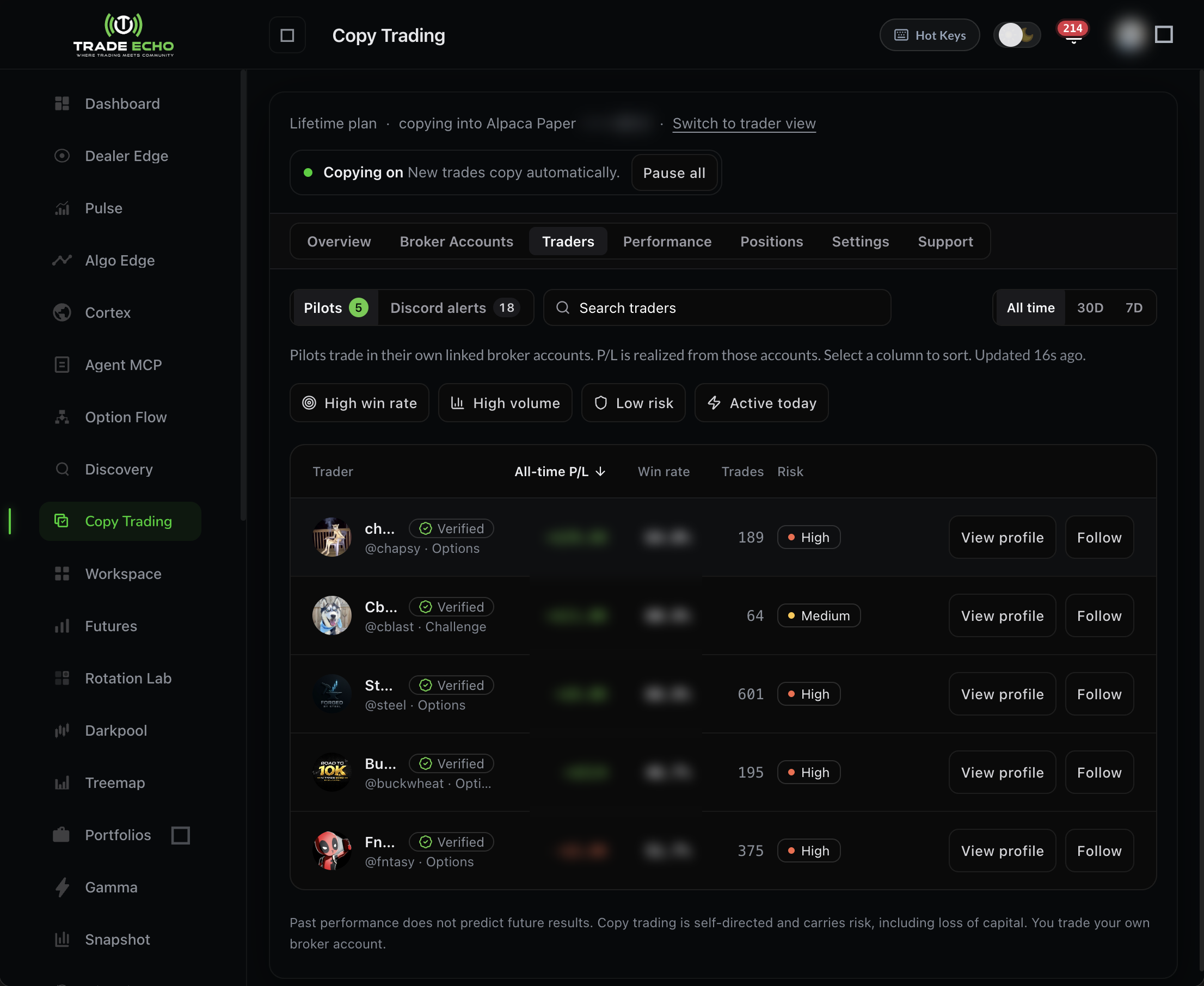 Traders tab with the Pilots and Discord alerts switch, filters, and the sortable trader table (P/L and win rate blurred)
Find traders to follow. A switch at the top picks the source, with a count on each side: Pilots or Discord alerts.
Pilots#
- Search by name or handle.
- Window: All time, 30D, or 7D for the P/L column.
- Quick filters: High win rate, High volume, Low risk, Active today.
- Sort by clicking a column header: P/L, Win rate, Trades, or Followers (highest first). Sort by P/L with All time for the old leaderboard view.
- Each row also shows a Risk chip (Low, Medium, or High, based on 30-day max drawdown) and the pilot's Balance.
Each row has View profile and a follow control:
- Follow opens the trader's profile straight into the guided follow steps (below).
- Following - hover or click it to see Unfollow. The app asks you to confirm with Keep following or Unfollow before anything changes.
- Paused - also offers Unfollow on hover or click, with the same confirmation. See What "Paused" means.
- Locked Follow - monthly and yearly plans can follow one trader at a time. While you follow someone, other Follow buttons show a lock, and the tooltip explains you need to unfollow your current trader first. Following more than one trader is a Lifetime feature.
If a trader you follow disconnects their broker, they show in a separate Inactive card at the top with an Unfollow button.
Trader profile#
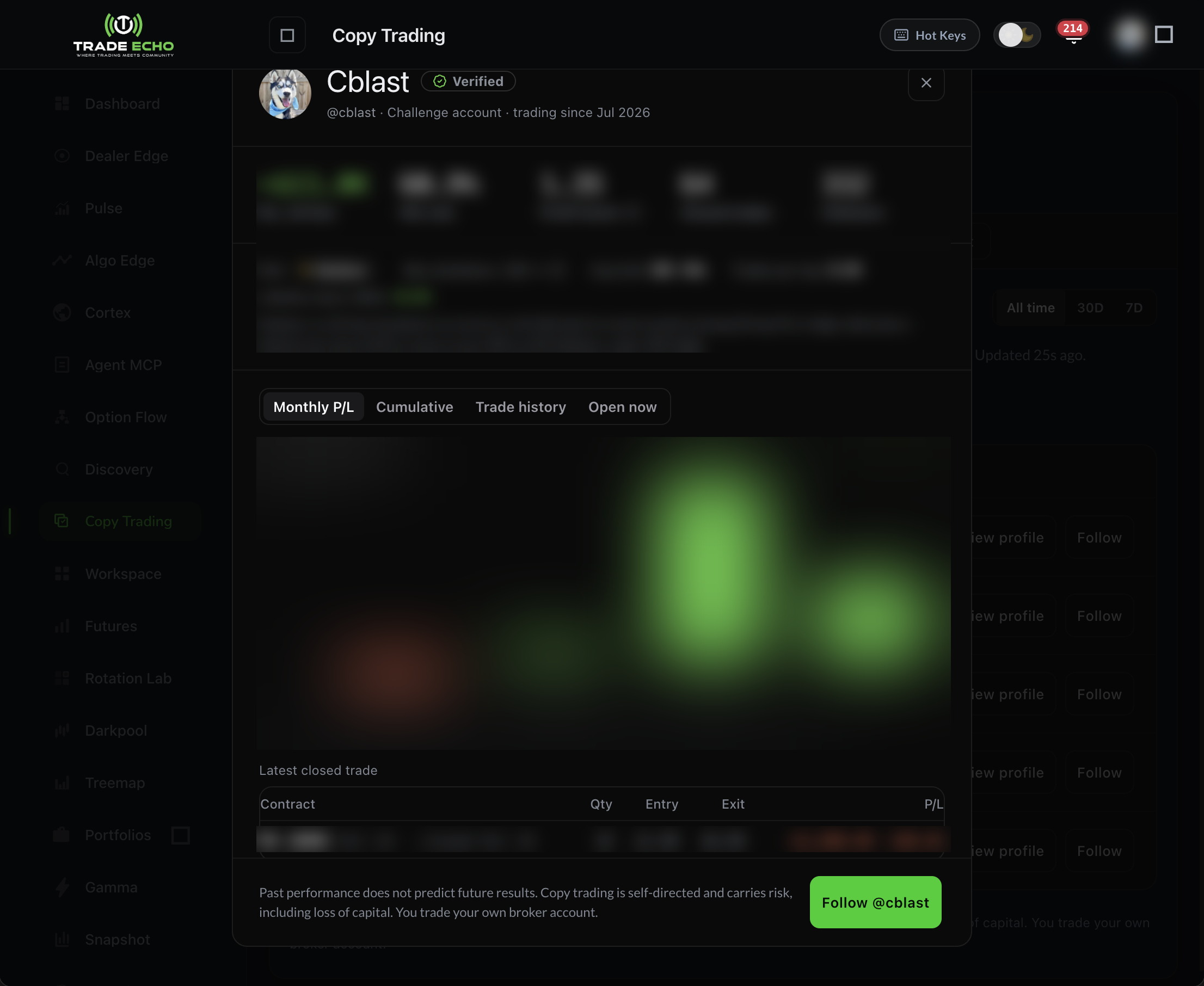 Trader profile layout: header, key numbers, risk facts and the Monthly P/L tab (figures blurred)
Click a row or View profile to open it.
- Key numbers: P/L, all time, Win rate, Profit factor, Closed trades, Followers.
- Facts: Risk, Max drawdown, 30D, Avg hold, Trades per day, Lifetime return (ROI).
- Tabs: Monthly P/L, Cumulative, Trade history, Open now.
- Latest closed trade under the tabs.
- The footer button reads Follow @handle, or Following if you already follow them (clicking it asks before unfollowing).
Guided follow#
Follow walks you through three steps:
- Broker - where copies route. Monthly plans route to your default broker. Lifetime plans can pick an account here and add a second broker for this pilot later in Settings.
- Risk - pick Conservative, Moderate (selected by default), Aggressive, or Follow 1:1. Each card shows its sizing and caps. Follow 1:1 copies the pilot's exact contract count with the contract, price, and drawdown caps turned off, so it asks you to confirm (Use Follow 1:1 or Go back).
- Confirm - review trader, broker, and risk tier, then Start copying @handle.
You can fine-tune everything later in Settings.
Discord alerts#
- Tier switch: All, Analyst, VIP, Members.
- Alert P/L (unverified) is shown in neutral text, not green or red. It comes from posted alerts, not broker fills.
- View profile opens the Discord trader profile, laid out like a pilot profile with the same neutral P/L.
- Follow opens the Discord follow setup. Depending on your plan, copying Discord alert traders may require Lifetime; the Discord alerts view says so when it applies.
Performance (subscribers and pilots)#
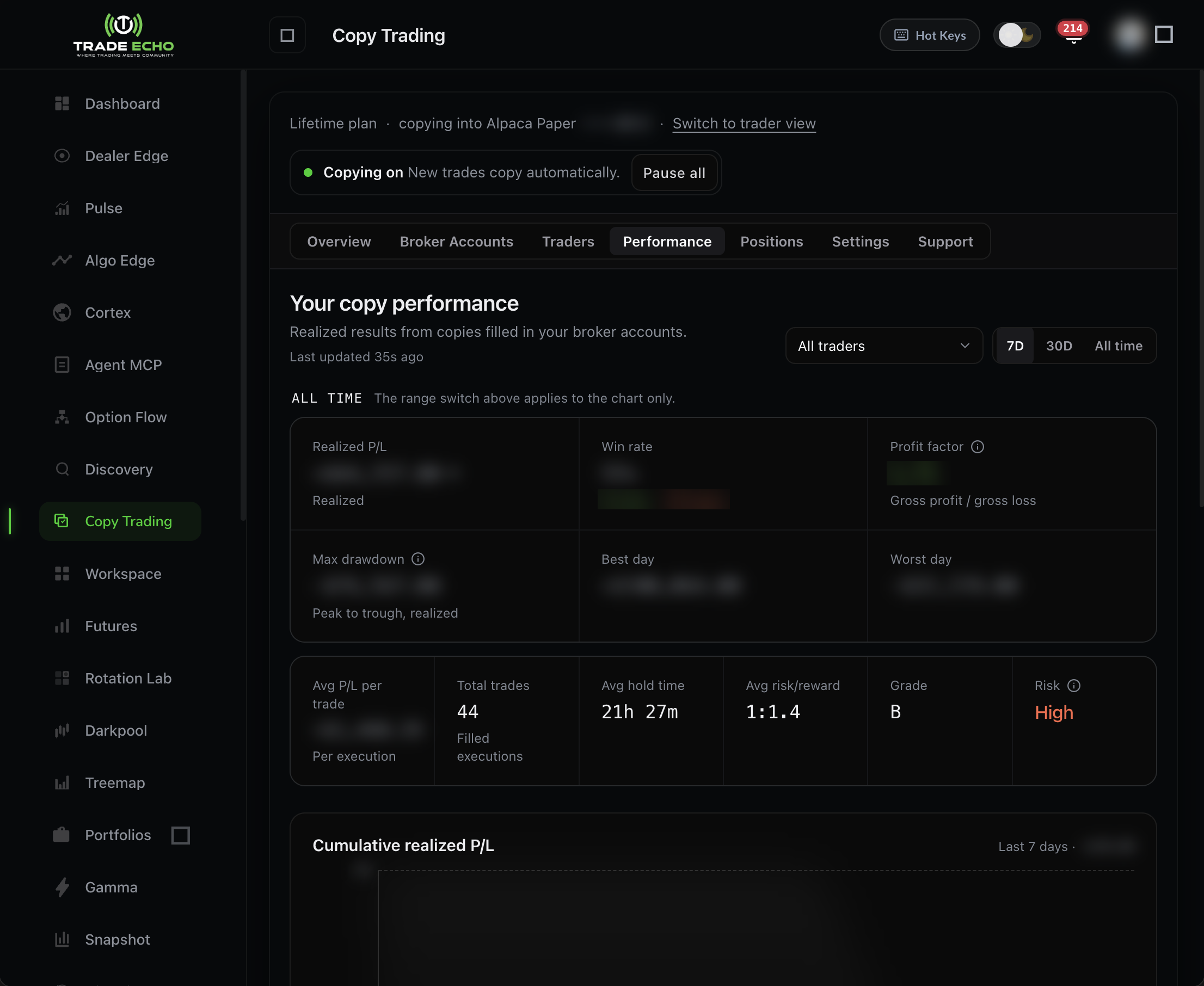 Performance tab with key numbers, the cumulative realized P/L chart, and the calendar (figures blurred)
Deeper history for your copied trades (pilots see their own record).
- Filters: pick a trader (All traders or one), a broker account when you have more than one, and a range: 7D, 30D, or All time.
- Key numbers: realized P/L, win rate, profit factor, max drawdown, best and worst day, average P/L per trade, total trades, average hold time, average risk/reward, risk, and a Grade. When you pick 7D or 30D, the key numbers stay all time and the range applies to the chart.
- Grade shows a letter only after 5 or more closed copies. Before that it says how many you need.
- Cumulative realized P/L chart for the selected range.
- Breakdowns: Calendar (daily P/L by month, with a month total and Share), Trade journal, and Time of day (realized P/L by weekday and hour, US Eastern).
Pilots get a wider window switch (1D to All time) and two views: My broker (your real trading record) and Copy impact (what subscribers realized).
Positions#
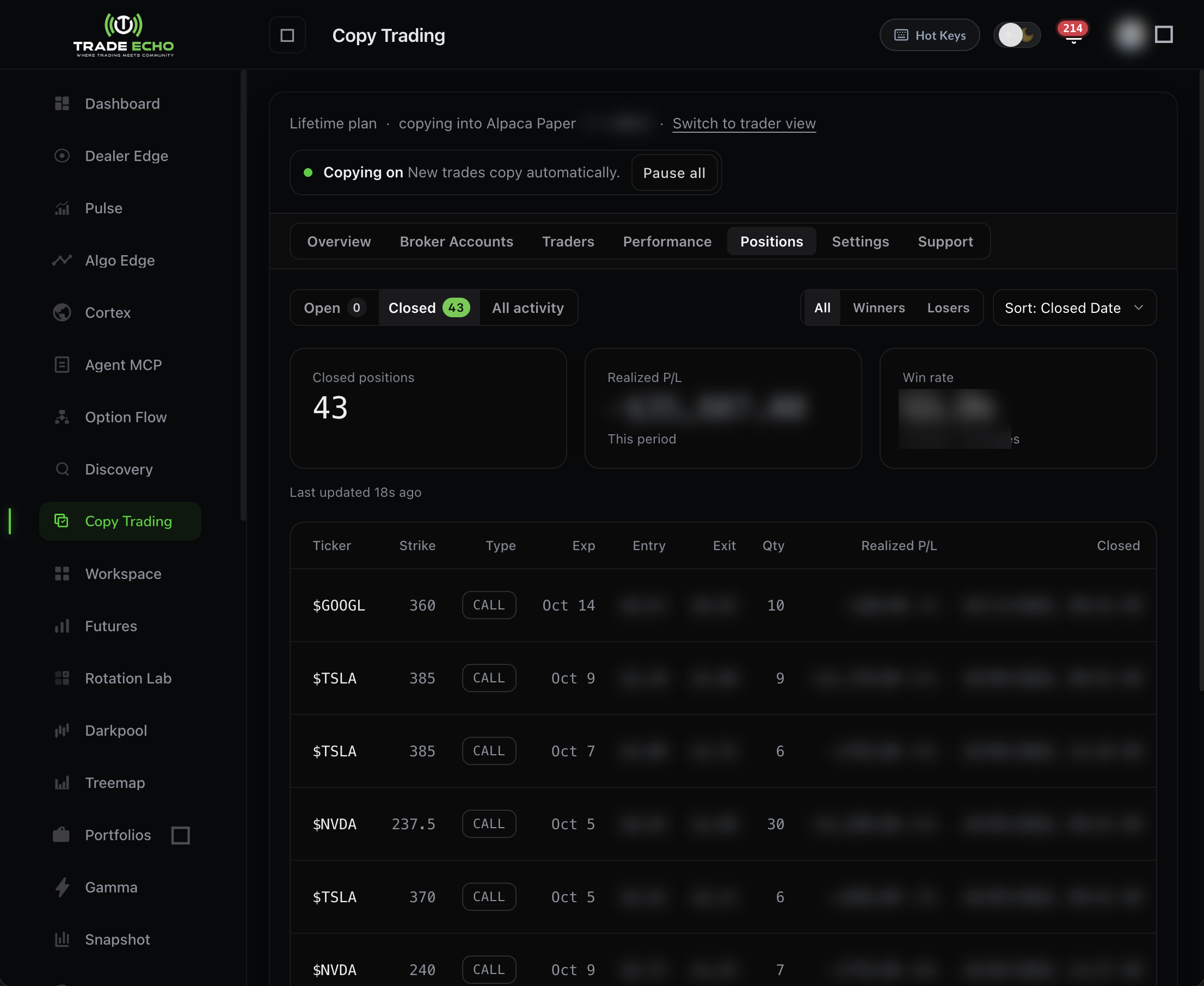 Positions tab with Open, Closed, and All activity views and the activity table (results blurred)
Three views, each with a count: Open, Closed, and All activity.
- Open and Closed have All / Winners / Losers chips, a sort menu, and summary cards (for example unrealized or realized P/L and win rate).
- All activity is the full log of copy orders, with All / Filled / Skipped chips and a date range (Last 7 days, Last 30 days, All time). Switch between Table and Timeline layouts.
- Each order carries a BTO / STC tag (or STO / BTC). BTO = buy to open, STC = sell to close.
- The Result column shows the outcome. Skipped rows show the reason inline, plus Why? Ask to ask the Support assistant.
Read the reason before changing Settings. A capital % gate needs a different fix than sizing rounded to 0 or a spread limit. See the FAQ for the common skip reasons.
Settings (subscribers only)#
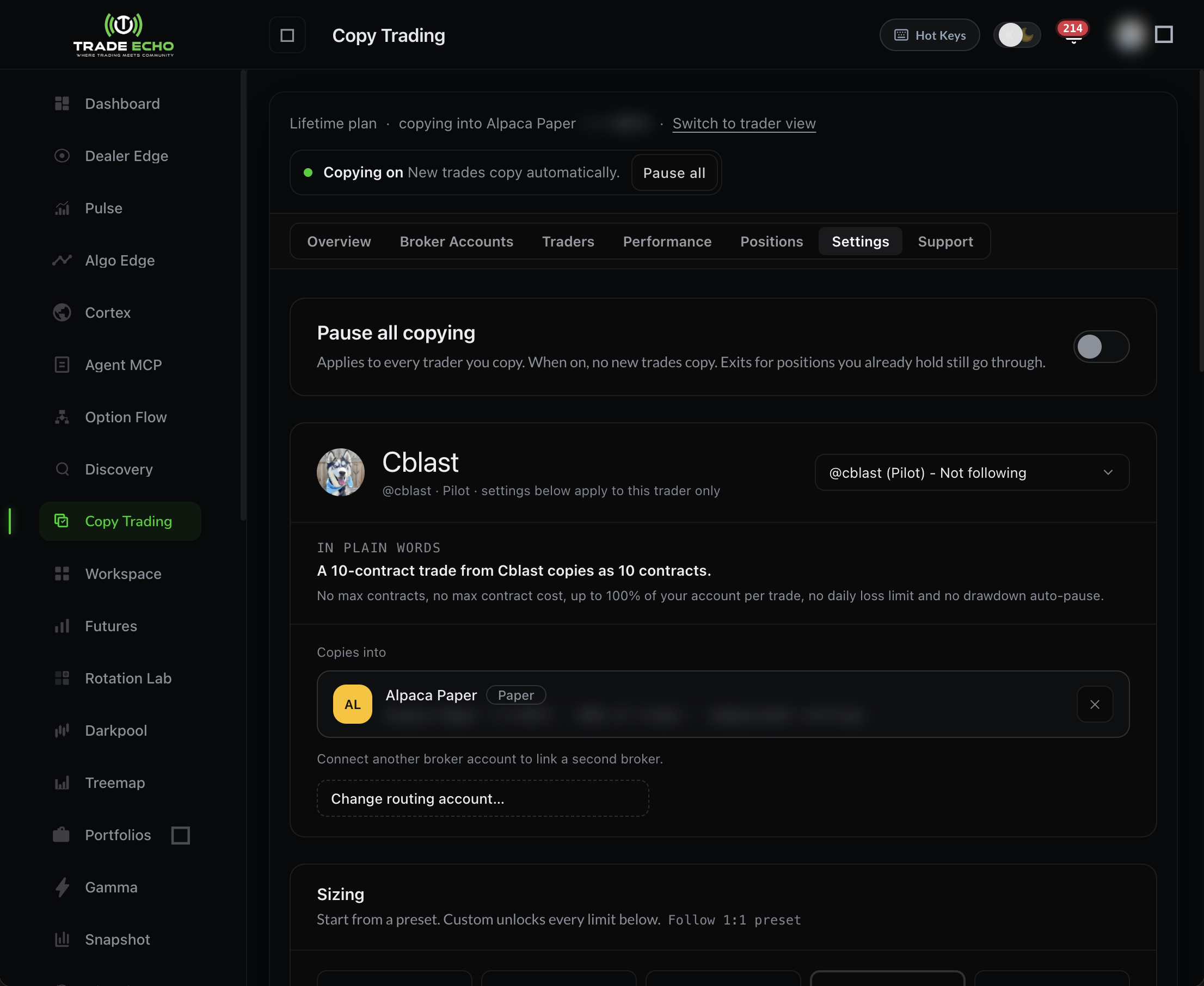 Settings tab with Pause all copying, the copy source picker, and risk tier presets
Control how copying works for each trader you follow.
Pause all copying at the top is the one master switch. It applies to every trader you copy and takes effect as soon as you flip it. Exits for positions you already hold still go through.
Copy source - the picker in the trader card chooses which trader you are editing. Each entry says Following, Paused, or Not following. Settings below apply to that trader only. An In plain words box sums up what your settings will do.
Copies into - the account this trader copies into. On monthly and yearly plans that is your default broker (change it with Set as default on Broker Accounts). On Lifetime, you can change the routing account for this trader or add another broker, each with its own independent settings.
Sizing - start from a risk tier preset: Low, Med, High, 1:1, or Custom. (In the guided follow these are called Conservative, Moderate, Aggressive, and Follow 1:1.) Custom unlocks every field. Editing a field that a preset controls switches you to Custom.
Key limits - exclude tickers, max contract cost, daily loss limit, drawdown auto-pause, and trading days and hours.
Advanced sections:
- What gets copied - ticker allowlist, index trading only (SPX / NDX), DTE filter.
- Limits for this trader - Pause this pilot until (a timed pause), min and max per contract, max daily buys, max open positions.
- How orders execute - fill strategy, time to fill, slippage and spread limits, max buys per position, manage sells manually.
- Account protection - max % capital per trade, hard stop, take profit, and a reminder that Trade Echo never closes expiring options for you.
- Notifications - trade executed, stop hit, risk triggered, daily summary, trader update.
Save - when you change something, a bar appears at the bottom with Discard and Save changes. Nothing applies until you save, and changes apply to new trades only. (The Pause all copying switch is the exception: it works right away.)
For what each limit gates, see the skip reasons in the FAQ.
Support (subscribers only)#
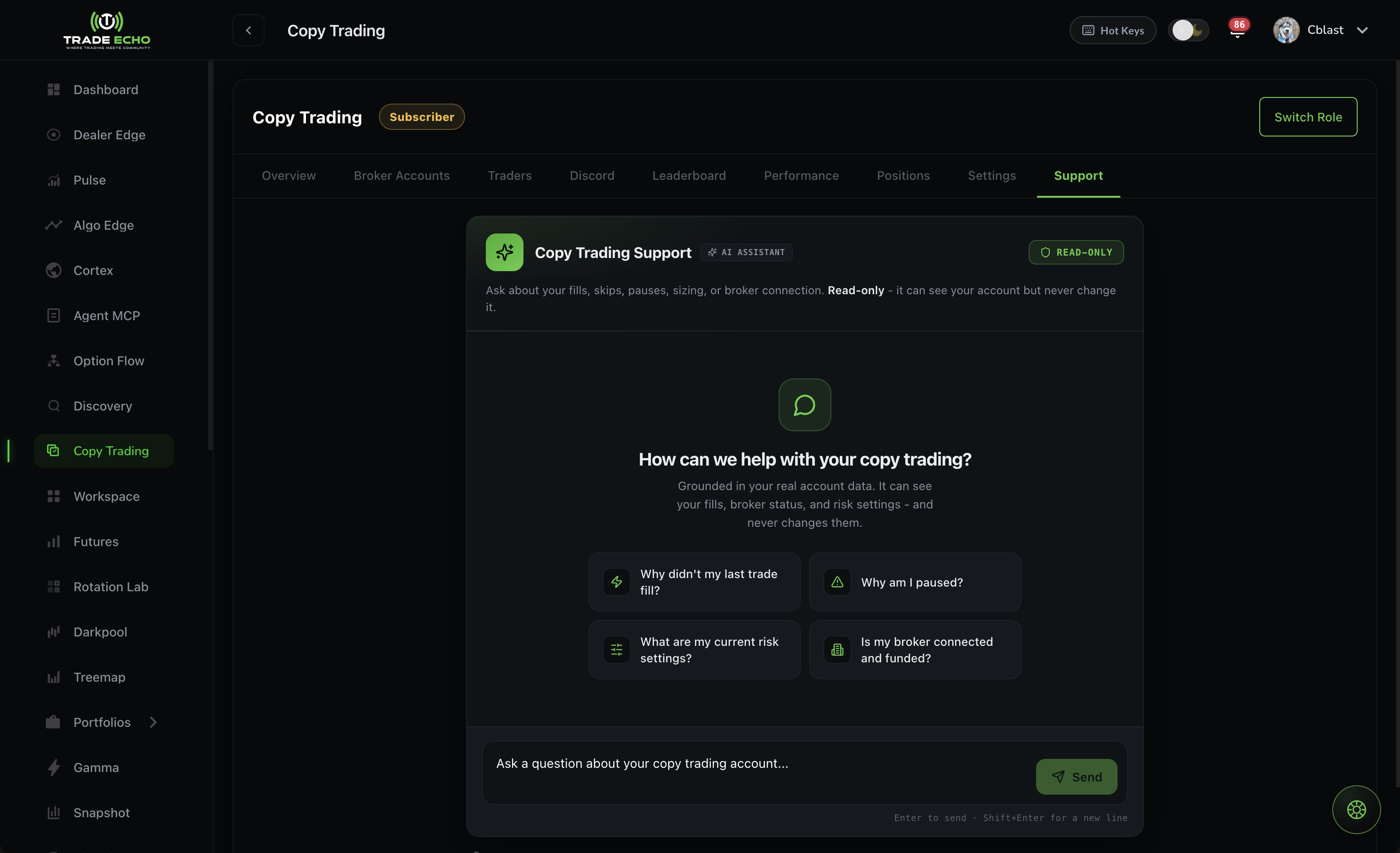 Copy Trading Support tab with the AI assistant and suggested questions
The Support tab is the in-app help desk for copy trading.
- Ask about your copy trading - a Cortex-powered assistant that reads your fills, skips, broker status, and settings read-only. It cannot place orders or change anything. Try a suggested question such as "Why didn't my last trade fill?" or type your own.
- Why? Ask links on Overview and Positions drop the question into the box for you. You still press Send.
- Account check - a quick rail showing whether copying is on or paused, your broker connection, skips in the last 7 days (with See the reasons), and whether you follow a pilot.
- Talk to a person - email support with your broker and the time of the trade when the assistant cannot solve it.
When a trade needs your OK (manual approval)#
Sometimes the app asks you to approve or reject a trade before it goes to your broker. A Trade Approval Required popup appears with a countdown. Choose Approve or Reject before the timer runs out. If you miss it, that trade does not copy. Check Positions afterward.
More help#
- Overview - Big picture and broker journal vs copy trading.
- Connect Robinhood - Robinhood Agentic Trading setup.
- Pilot Setup - Connect as a pilot and set the account you trade as default.
- FAQ - Risk, pausing, skip reasons, and troubleshooting.
Copy trading is a tool, not personalized investment advice. Past performance does not guarantee future results.