
Workspace
Build your own multi-tile trading terminal - 18 tile types, saved layouts, an attached Cortex agent that reads your tiles, and shareable layouts.
Workspace is Trade Echo's build-your-own terminal: a drag-and-drop grid where you compose the tools you actually use - flow, gamma, dark pool, news, your P&L - into one screen. Open it at Workspace in the web sidebar (/workspace).
Workspace is currently web only.
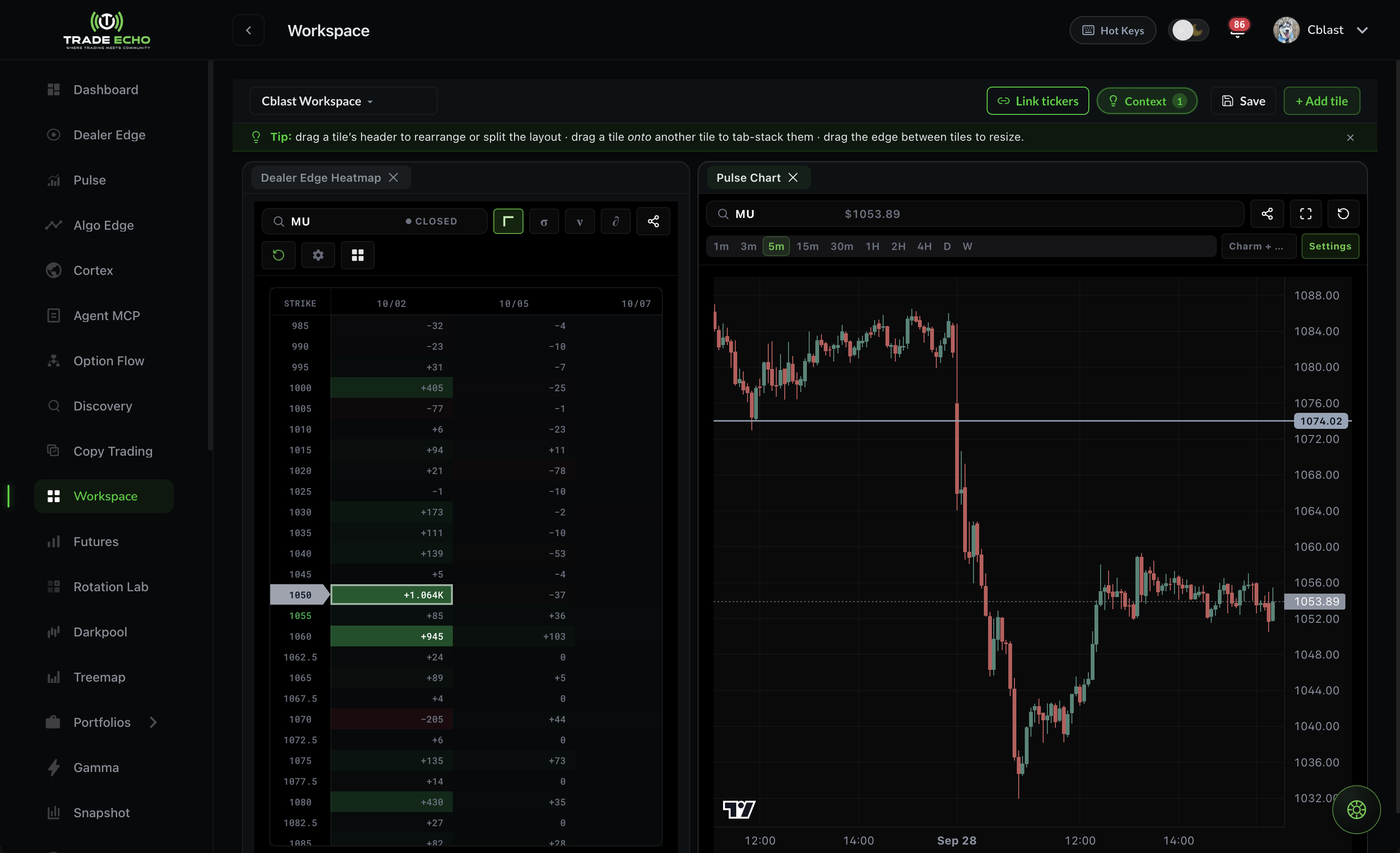 Populated Workspace layout with multiple tiles
The 18 tile types#
Click + Add tile to open the picker:
| Tile | What it shows |
|---|---|
| Gamma GEX | Per-ticker dealer gamma chart + KPIs |
| Net Flow | Per-ticker net option premium + volume with bias |
| NewsEdge | Live news feed with channel filters |
| Performance | Calendar + heatmap of your P&L |
| Watchlist | Your saved tickers + live quotes |
| AlgoEdge | Algorithmic signals + contract drilldown |
| Darkpool | Live dark pool prints feed |
| OptionFlow | Unusual options activity feed |
| Dealer Edge Heatmap | Per-strike dealer gamma heatmap |
| Dealer Edge Pro | Multi-ticker dealer gamma side-by-side |
| Dealer Edge Focus | Per-ticker dealer positioning deep-dive |
| Pulse Chart | Price chart with GEX / darkpool / net-flow overlays and replay |
| Dealer Edge Greeks | Dealer greeks read for a ticker |
| Futures Echo Map | Futures session map with live levels |
| Treemap | Market heatmap grid |
| Snapshot | Sentiment snapshot for a ticker or the tape |
| Rotation Lab | Relative rotation map (sectors, holdings, watchlist) - see Rotation Lab |
| Cortex AI | AI assistant chat - ask about your tiles |
Tiles resize and rearrange freely (each has a sensible minimum size). Most tiles have per-tile settings - default ticker, filters, density - via the gear on the tile header. OptionFlow is capped at one per layout for now.
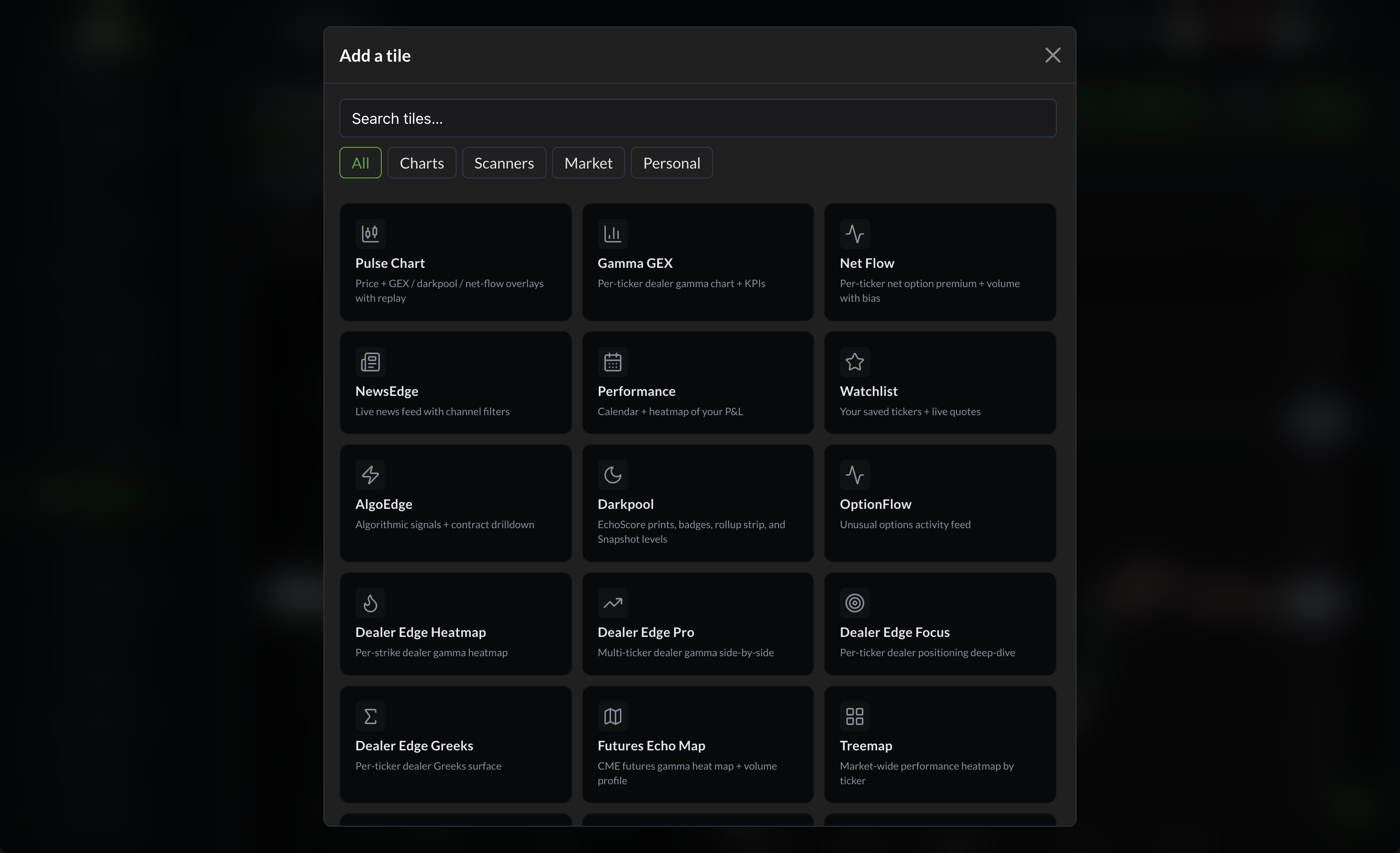 Add tile picker showing available tile cards
Layouts#
The layout switcher in the header is a dropdown, not a tab bar:
- Click the current layout name to rename it inline
- + New layout saves your current arrangement as a new layout
- Delete layout soft-deletes (your default layout is protected)
Build one layout per routine - a morning-prep screen, a 0DTE screen, an earnings screen - and switch between them in two clicks.
Cortex in your Workspace#
Add the Cortex AI tile and your workspace becomes conversational:
- Attach an agent - attach one of your Cortex agents to the layout. It receives a snapshot of your bound tiles' state as context with every message you send from the tile.
- Context bindings - the bindings pill in the workspace header (visible once an agent is attached) lets you toggle exactly which tiles feed the agent. Bound tiles' data rides along; unbound tiles stay private to the screen.
So "what do you make of this flow?" actually means this flow - the OptionFlow tile on your screen.
Sharing a layout#
From the layout switcher, open Share this layout:
- Create a share link (existing links are listed so you can copy or revoke them)
- Send the URL - it looks like
/workspace/share/<code> - The recipient sees the layout's title, creator, and tile manifest, and can Add to my Workspace - forking a private copy onto their own account
Sharing copies the layout, not your data - their tiles load their own quotes, watchlists, and P&L.
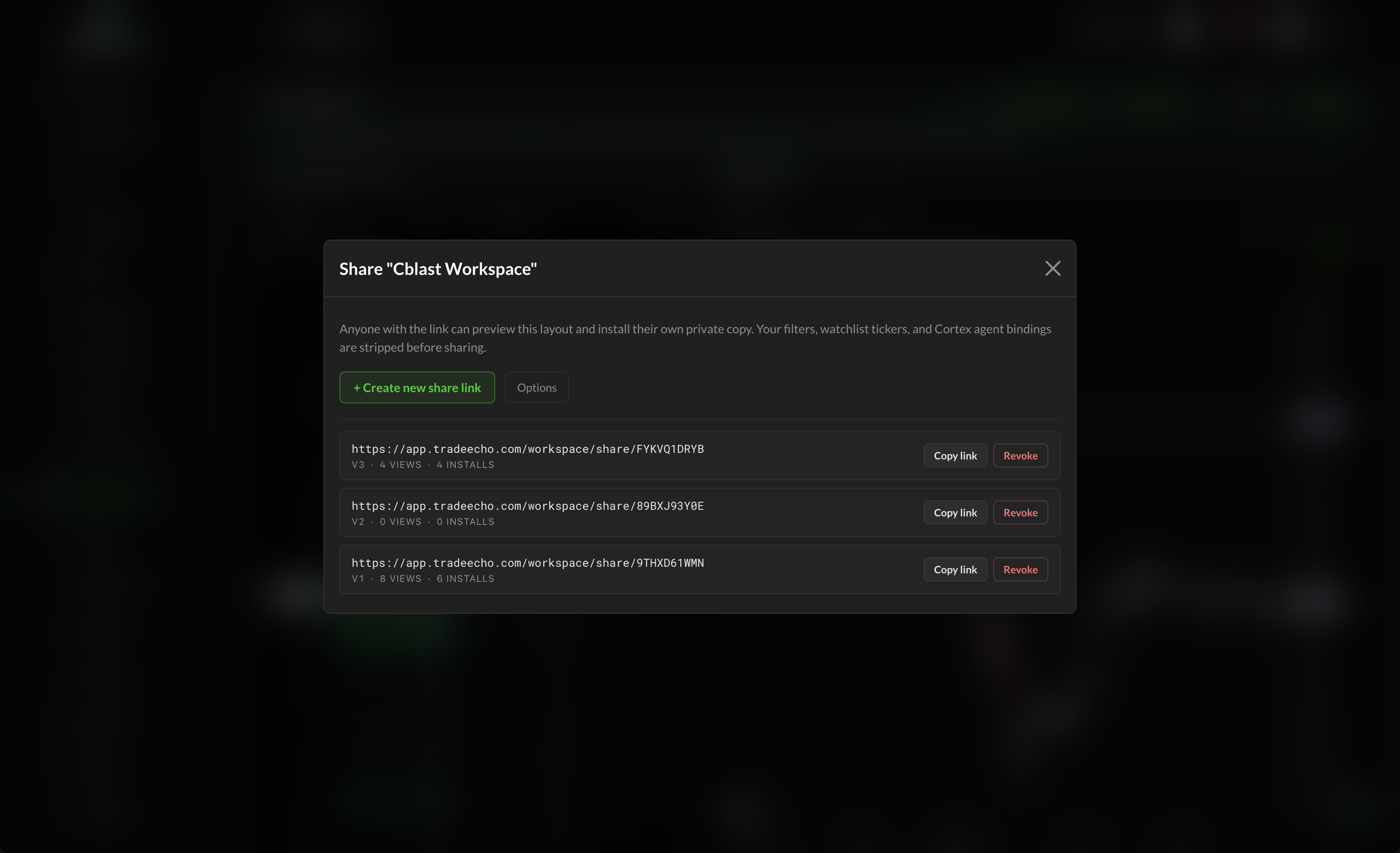 Share this layout modal with share link
Next Steps#
- Rotation Lab - pin the rotation map next to OptionFlow or a chart
- Reading the Rotation Map - axes, seasons, and playbook
- Dealer Edge Quick Start - the heatmap behind three of the tiles
- Net Flow - the Net Flow tile explained
- Cortex Agent Builder - build an agent worth attaching