
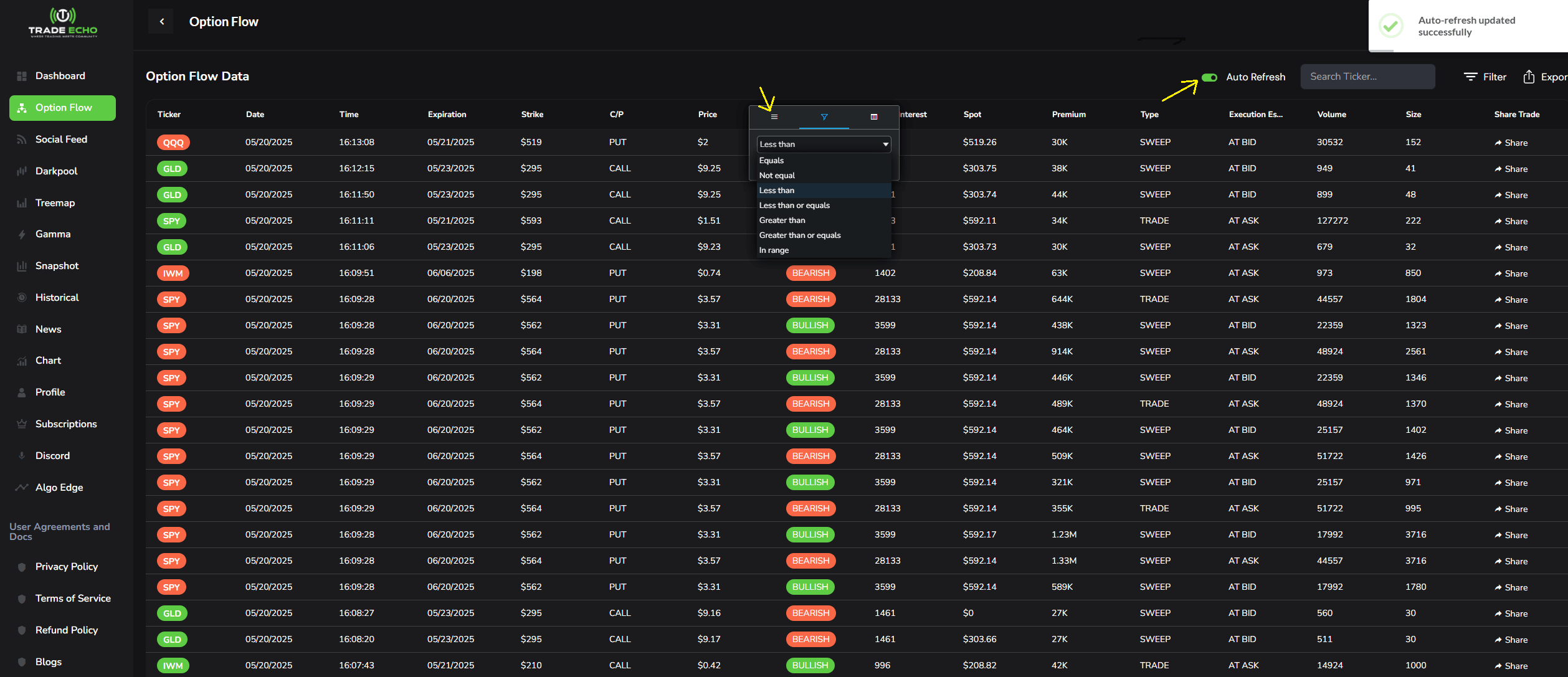
Easily filter real-time option flow data with custom settings on Trade Echo's Option Flow. Follow these steps:
Enable Auto Refresh
- Toggle the Auto Refresh button to ON.
- This activates a real-time feed, automatically loading new option flow results as they arrive.
Filter by Column
- Click the Column Header you want to filter (e.g., Price).
- Select the middle button to choose a condition:
- Options: Less Than, Greater Than, Equal To, Range, etc.
- Enter your desired value (e.g., a specific price or range).
Customize Type, C/P, and Sentiment
- For columns like Type, C/P (Calls/Puts), or Sentiment, uncheck any options you don’t want to see.
- This narrows down the feed to your preferred criteria.
View Filtered Results
- Only new option flow data matching your filters will appear in the real-time feed.
Tip: Experiment with filters to focus on high-value trades or specific sentiments. Save your settings for quick access later!